Find the right conversation
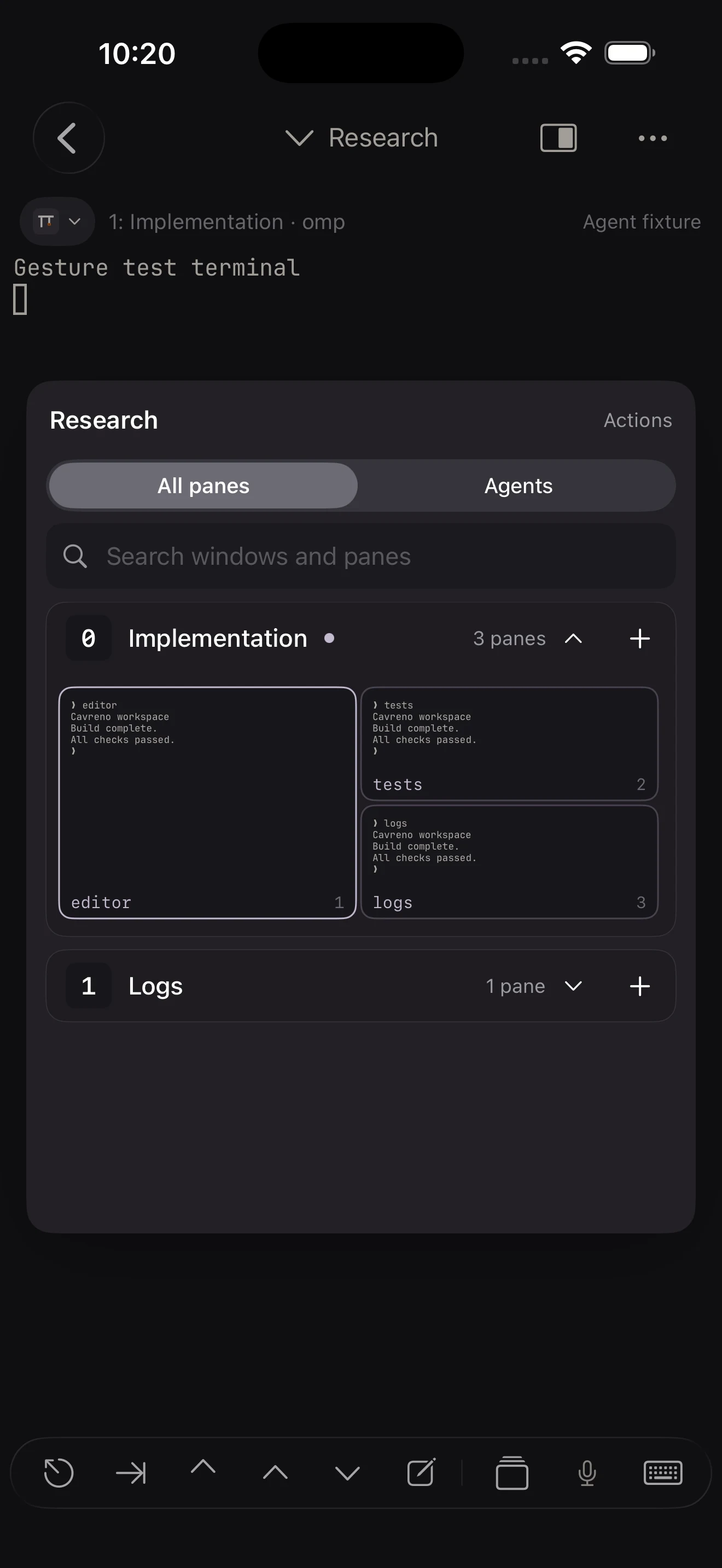
See your tmux sessions and pane layouts. Open a recognized agent in its existing context.
Explore visual tmux navigationClaude Code, Codex & tmux on iPhone
Open the result. Inspect the files. Send the next instruction. Cavreno brings your remote terminal, browser, and files into one native workspace.
In development · iPhone & iPad · Your own SSH host
Works with agents on your SSH host
From agent output to your next instruction
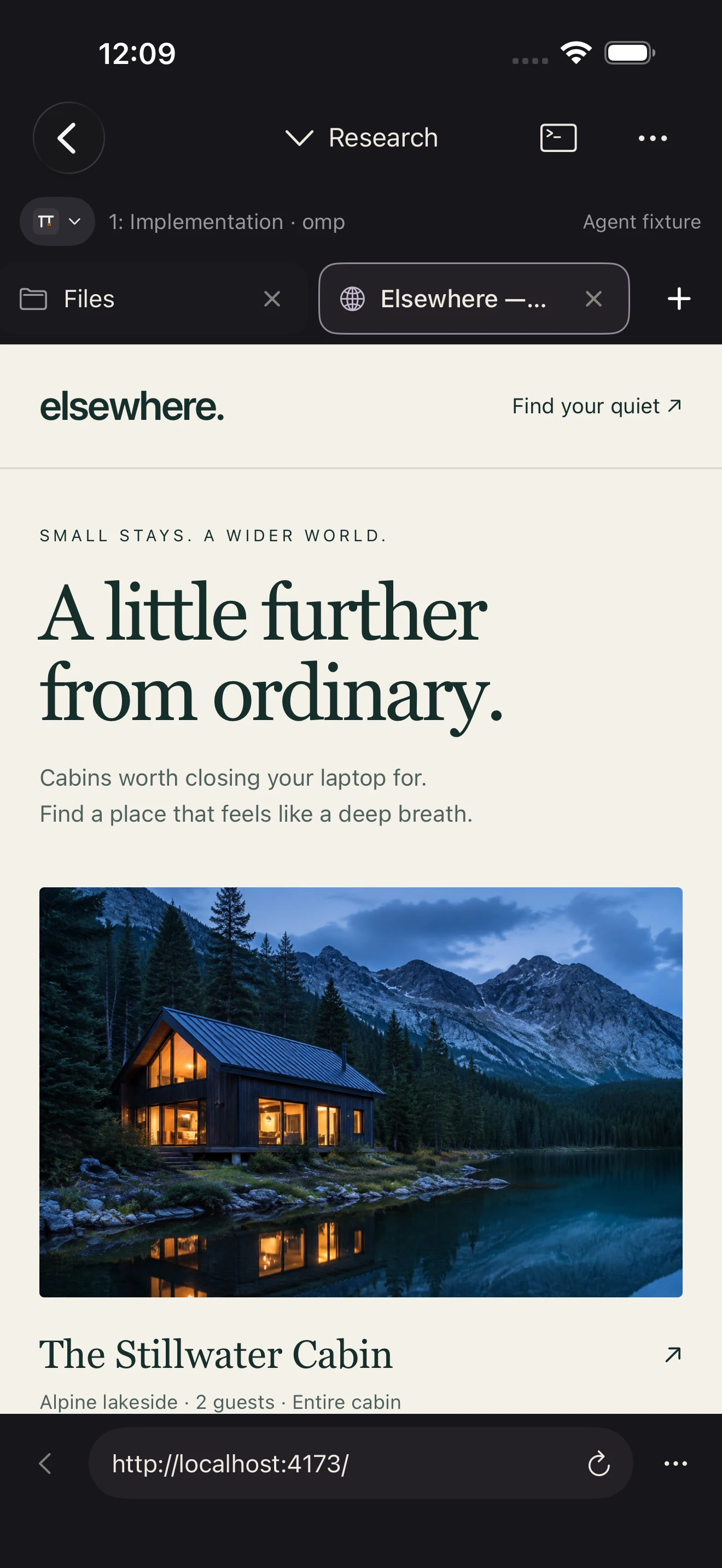
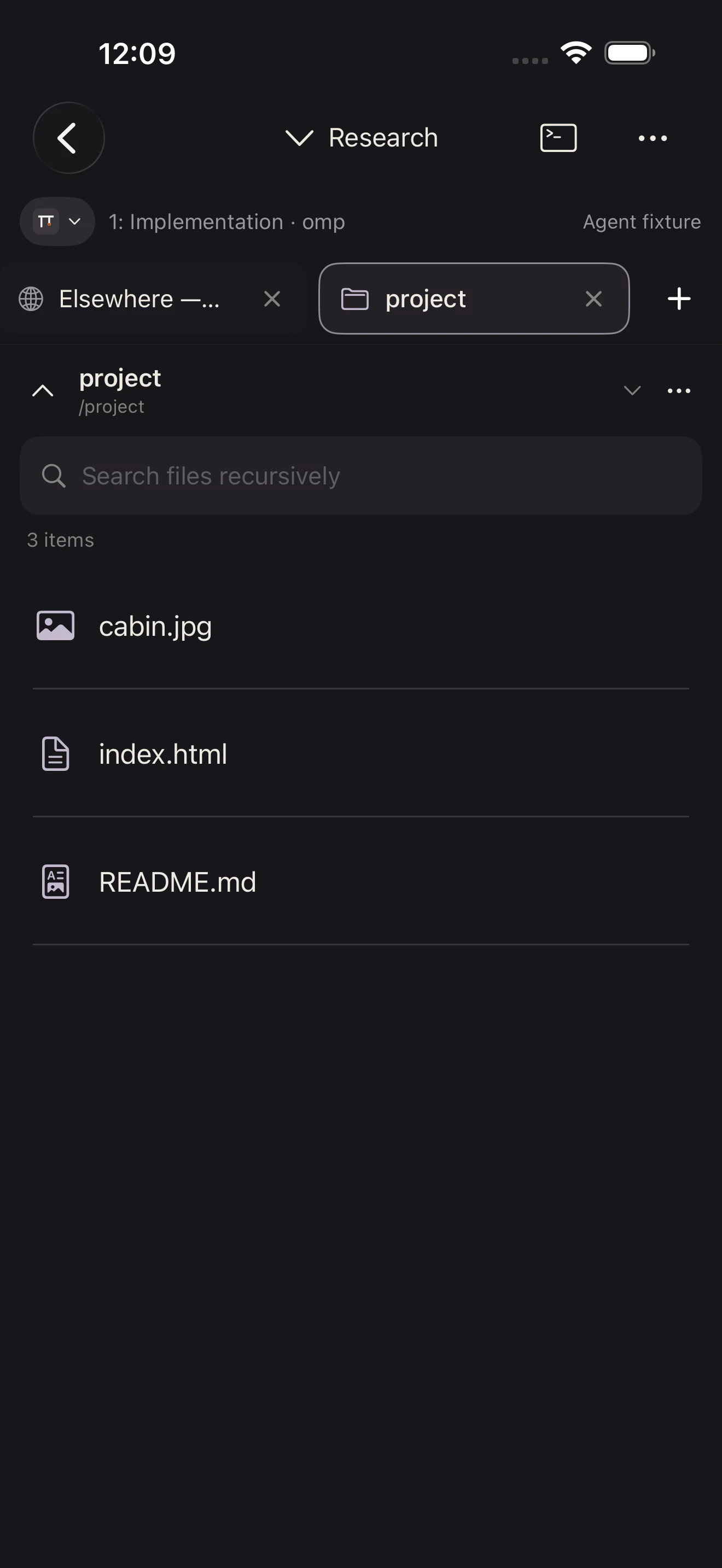
A terminal reply is the start of the check. Open the web page, inspect a remote file, then swipe back to the same conversation.
App screens · sample project
Why Cavreno
A useful reply starts with context: the right agent, its output, and the files or page you need to inspect.
See your tmux sessions and pane layouts. Open a recognized agent in its existing context.
Explore visual tmux navigationOpen a web page or remote file beside the terminal. Return to the same pane to give your next instruction.
See the workspaceYour repository, shell tools, and agent run on your SSH host. Connect directly, with credentials in the device-only iOS Keychain.
See how SSH worksBring the setup you already use
For developers with a remote workspace, or a computer they can leave running. iPhone and iPad, with iOS 17 or later.
Use a Mac, Linux machine, or server with SSH enabled and a network connection your phone can reach.
Run your tools on that host. Use tmux for persistent sessions and Cavreno’s visual pane navigation.
Add the host, verify its SSH key, and open your existing session. Your coding-agent account stays separate.
Away from your local network, configure access to your host separately, for example with a private VPN. The host must stay awake; the phone needs a connection when you interact.
Step away. Come back.
Your day moves on. Your session stays on your host.
Leave your task running in tmux. Put your phone away.
❯ task running in tmux
Keep your host and tmux server running.
Resume on launch or choose a recent workspace from Home.
Research / Implementation
The host must be awake and reachable.
Read the latest output and send your next instruction.
❯ your next instruction
No replay of old input after a failed connection.
Inside Cavreno
Pinned and recent workspaces, ready to reopen.
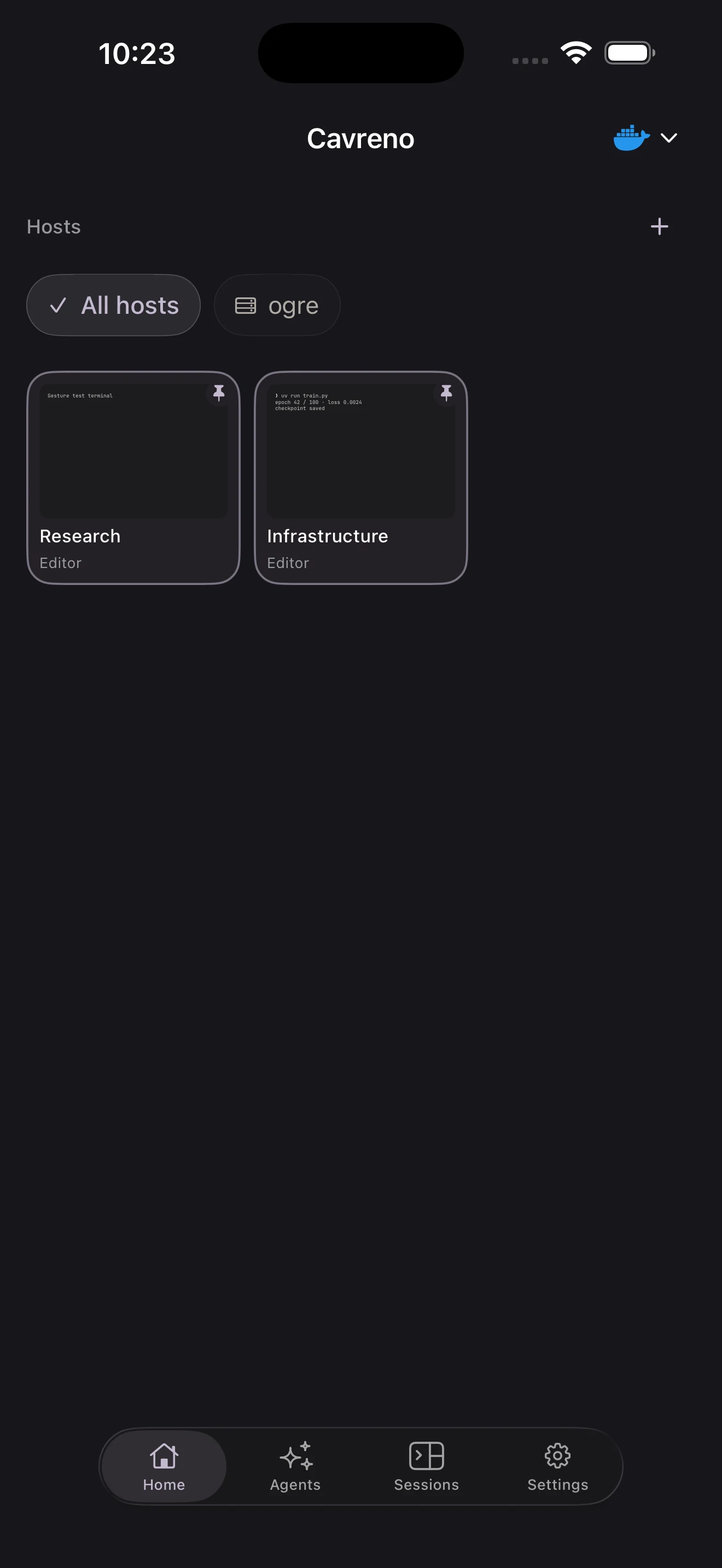
See your editor, tests, and logs in one map. Tap the pane you need.
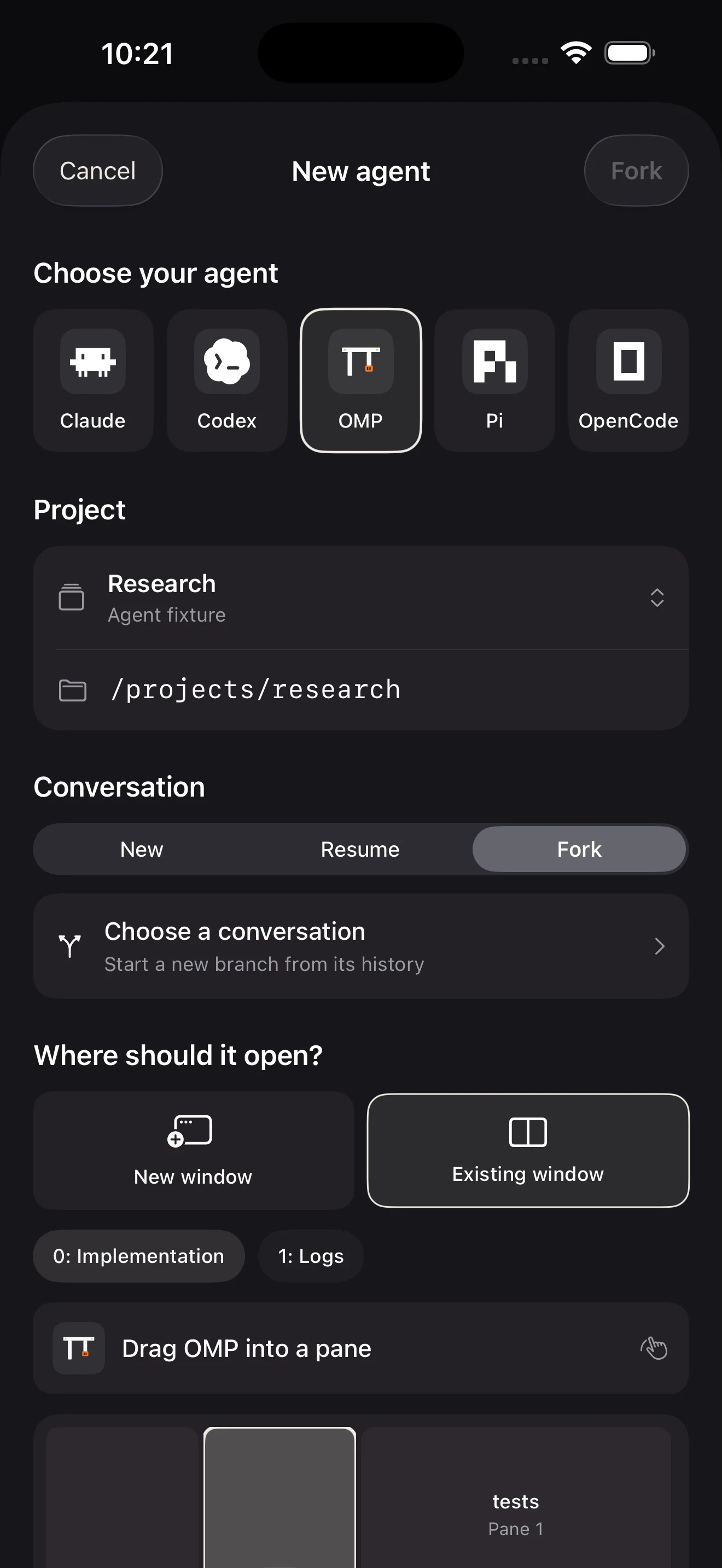
Choose your agent and project. Start, resume, or fork a conversation.
Send Ctrl+C from the agent menu. Check the response, then redirect.
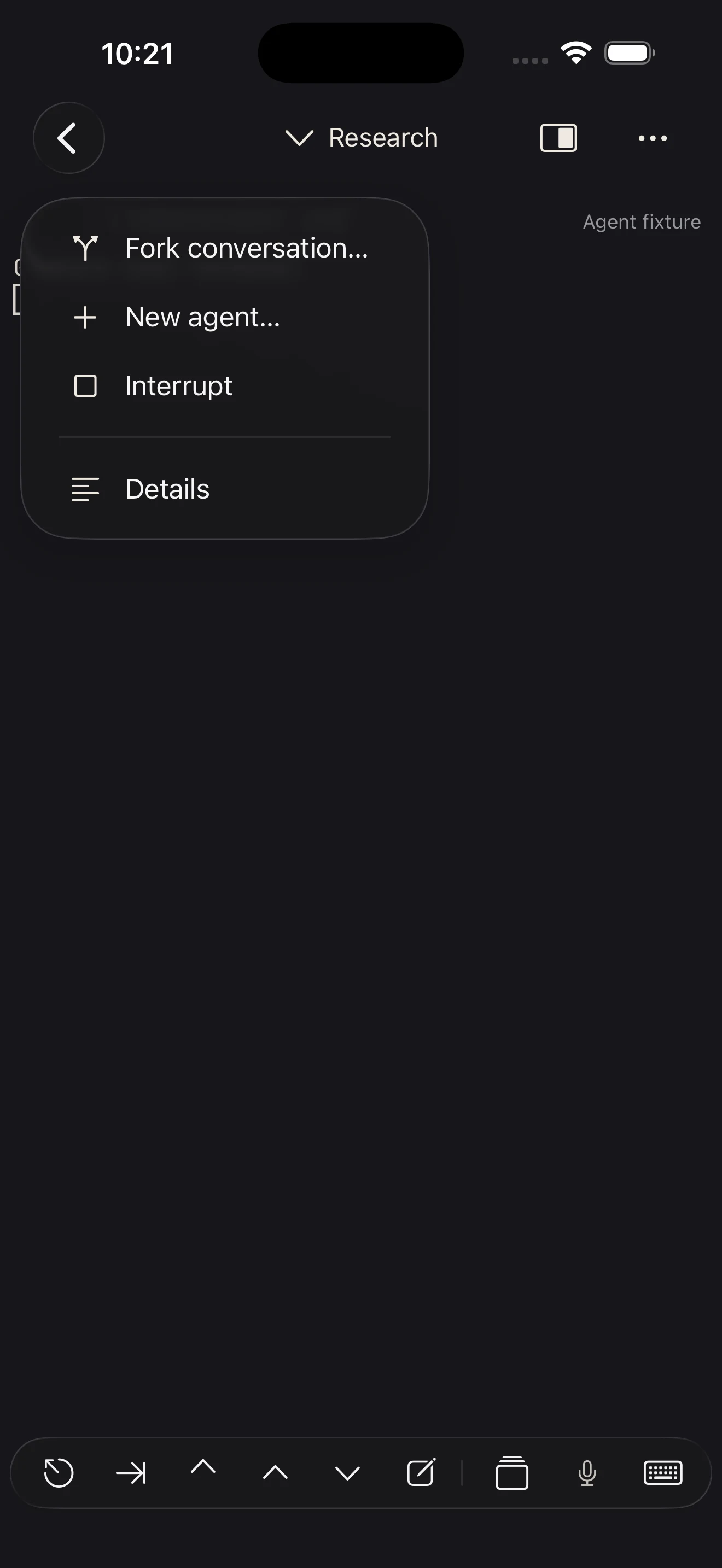
App screens · sample workspaces. Provider icons identify tools, not endorsements.
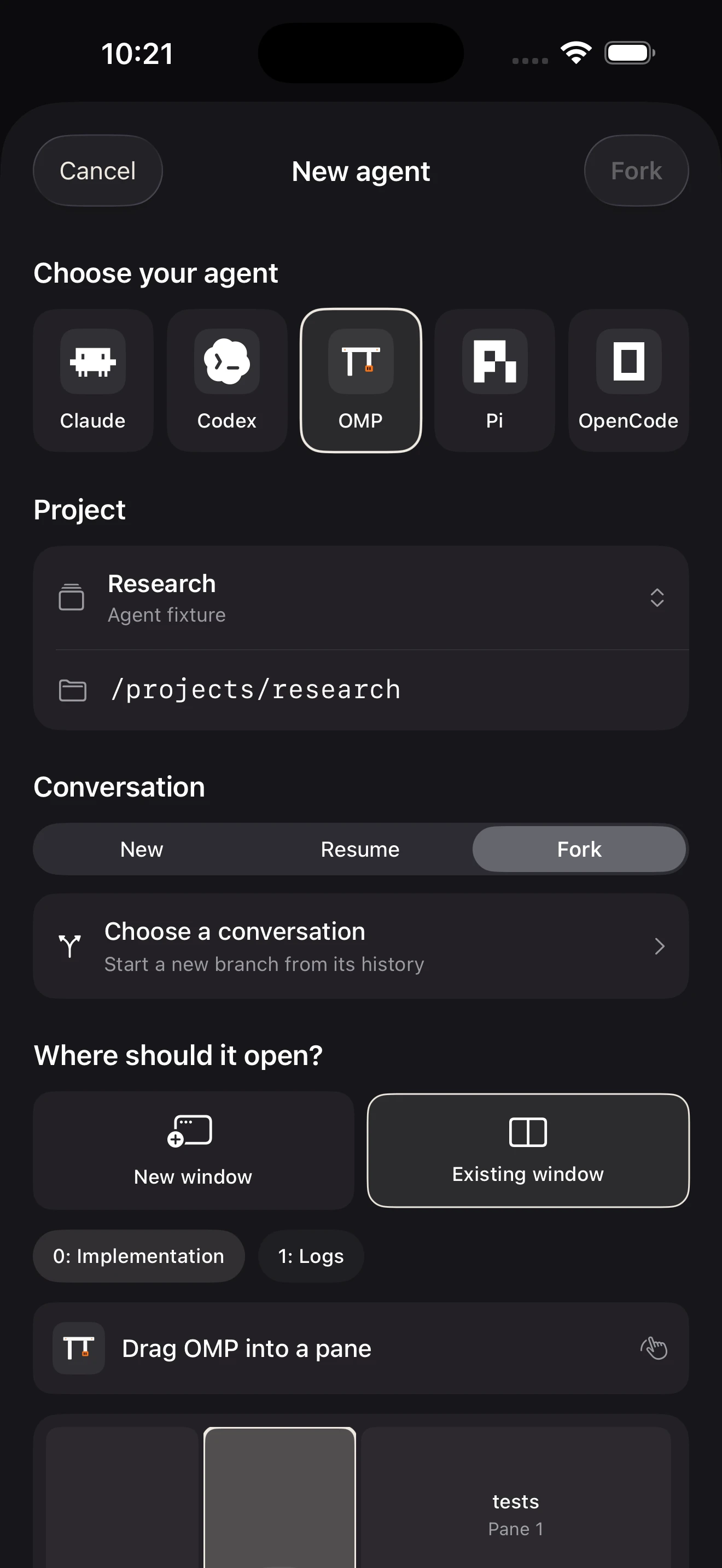
App preview · sample workspace
Check in. Pick up. Change course.
Find your running agent. Open its pane. Resume a conversation or fork a new direction.
Resume with context. Choose the conversation and the place it should open.
Interrupt and redirect. Send Ctrl+C from the agent menu, inspect the result, then give the next instruction.
Available actions depend on the agent and host setup.
Voice input
Speak your instruction. Review the words. Send them to your terminal.
On-device recognition where supported. No recordings saved by Cavreno.
Voice input
Research · Implementation · pane 2
Voice-flow illustration · Apple Speech
Choose your workflow

Your work has a home. You have a world.
Your tmux session stays on your host. Come back to it from your phone when you choose.
Keep your agents within reachBefore you step away
A native developer workspace for iPhone and iPad. Connect to your SSH host, run coding agents, and keep browser tabs, remote files, and media previews beside each terminal.
Each terminal has a companion workspace for browser tabs, remote files, and document or media previews. Cavreno also adds visual tmux navigation, agent discovery, and touch controls.
Yes, when they run on your reachable SSH host. Cavreno can recognize standard agent processes in tmux and open their existing panes. Optional supported integrations add last-reported lifecycle states. Your agent software and provider access are separate.
Supported host integrations can surface attention requests in Cavreno’s inbox and show alerts while you are connected. Supported Codex and OpenCode requests can be reviewed in native controls; other requests open in the terminal. Background push is still in development.
Processes inside remote tmux sessions keep running while the host and tmux server remain running. Cavreno reconnects when you return to the foreground. Your phone still needs a network connection to interact with the host.
Passwords, imported private keys, and passphrases are stored in the device-only, when-unlocked iOS Keychain. Cavreno connects directly to your SSH host and supports host-key verification.
Yes. Voice input uses Apple Speech to turn your words into an editable transcript. Review it before sending or inserting it into the selected terminal. Apple may process audio if on-device recognition is off. Read-aloud TTS is not included.
Cavreno runs on iPhone and iPad with iOS 17 or later.

A closer look at the app, its workflows, and what you need to use it.
Preview CavrenoIn development · iPhone & iPad